> ## Documentation Index
> Fetch the complete documentation index at: https://documentation.slotify.com.tr/llms.txt
> Use this file to discover all available pages before exploring further.

# Create Reservation

> Book on behalf of your customers

# <span className="s-hero">Create Reservation</span>

Create a booking in seconds for the customer calling you or walking in.

<Info>📱 🧭 **Menu:** **My Business → Create Reservation**</Info>

<Steps>
  <Step title="Pick expert & services">
    <Frame>
      <img src="https://mintcdn.com/codevestllc-5d6f3ede/YKrZiftlDEtllZar/images/12.png?fit=max&auto=format&n=YKrZiftlDEtllZar&q=85&s=b2df0477a2b8388ffd6e7eca5b1d898c" alt="Expert and services" width="1080" height="1350" data-path="images/12.png" />
    </Frame>

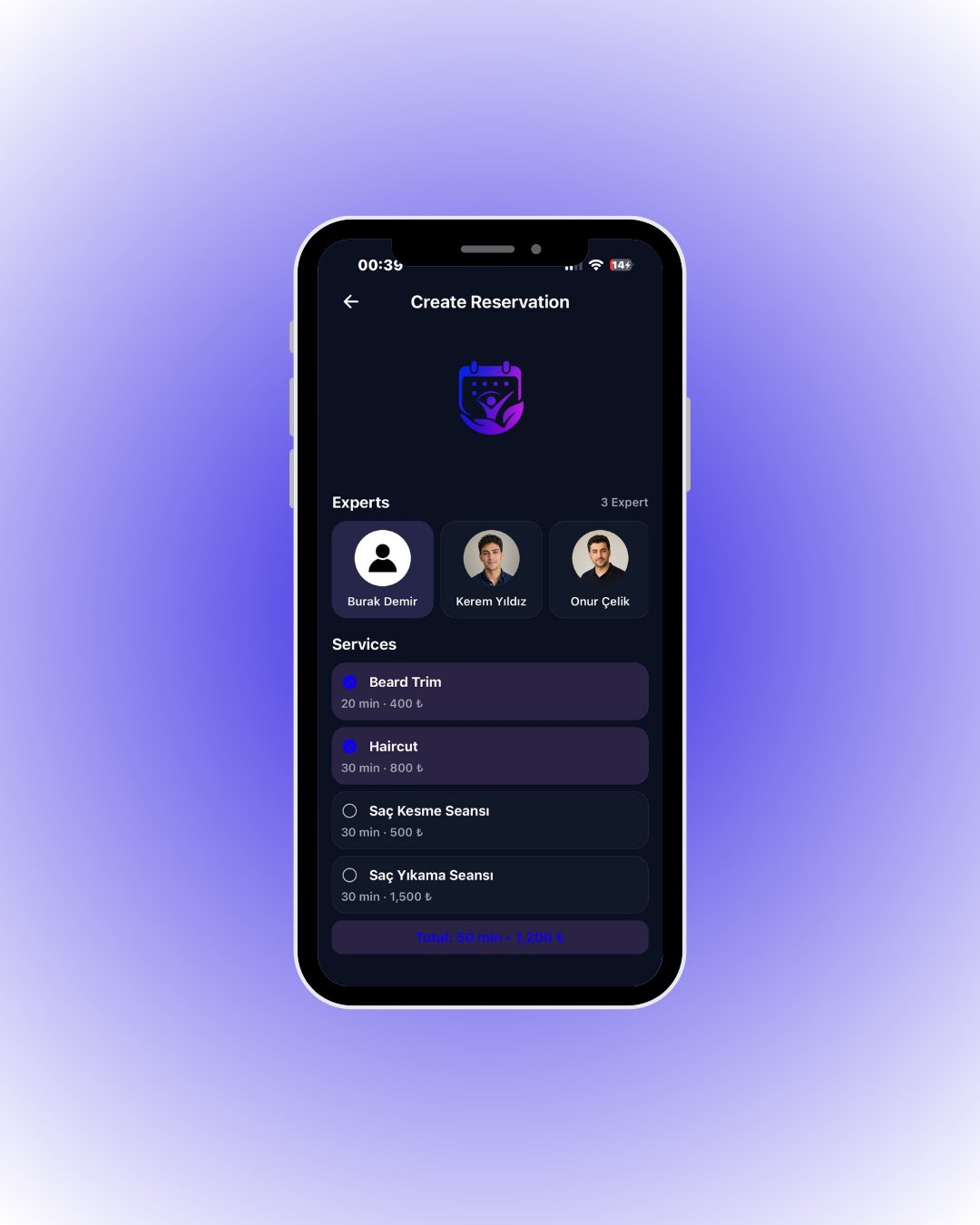
    Choose the **expert** first, then one or more **services** — total time and price update live at the bottom. Session (group) services are selected on their own.
  </Step>

  <Step title="Pick a time">
    <Frame>
      <img src="https://mintcdn.com/codevestllc-5d6f3ede/YKrZiftlDEtllZar/images/13.png?fit=max&auto=format&n=YKrZiftlDEtllZar&q=85&s=1644e02c05fed055e3d1e34837be6468" alt="Available slots" width="1080" height="1350" data-path="images/13.png" />
    </Frame>

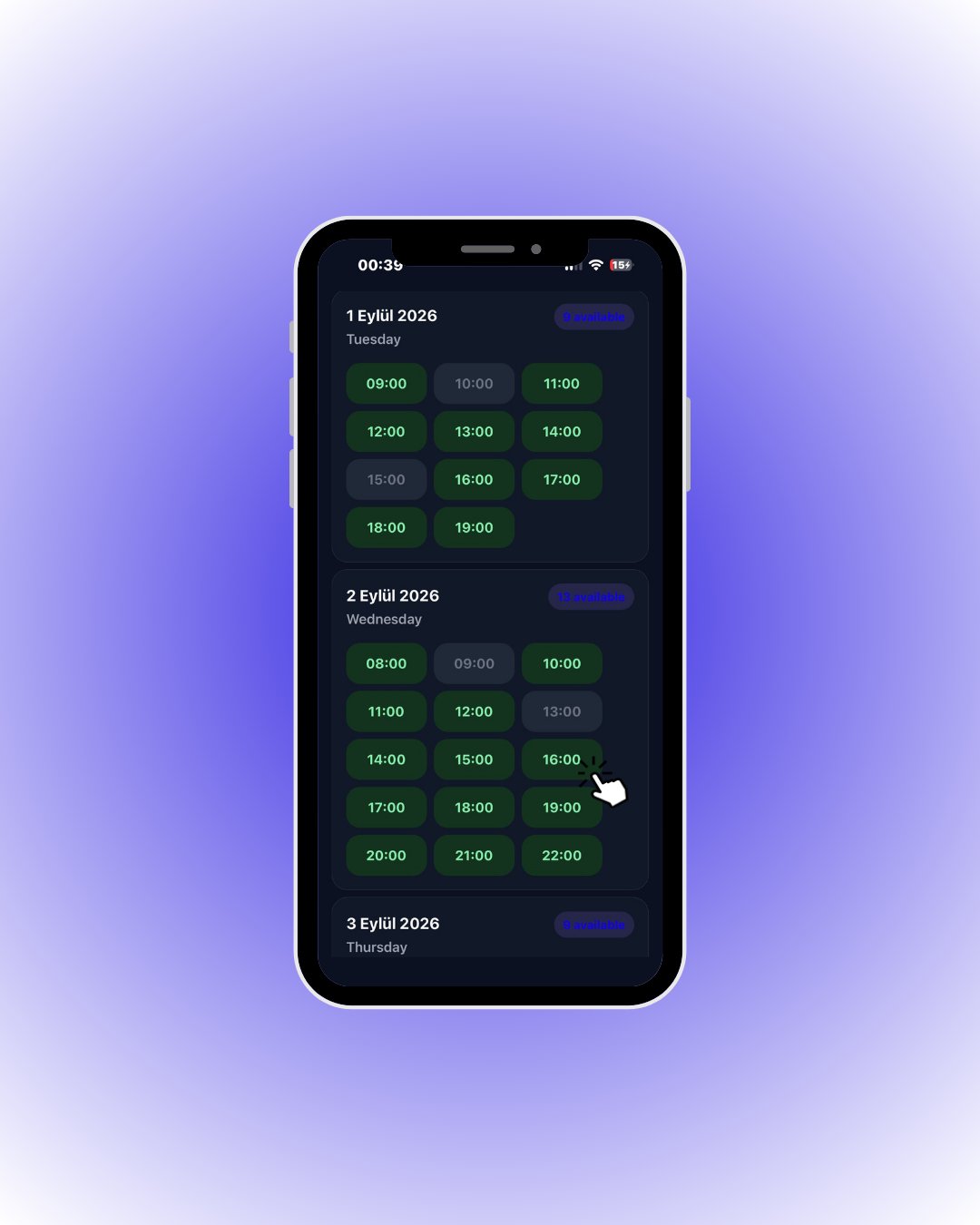
    Available slots are green, taken ones are dimmed. For session services each slot also shows the **remaining capacity**.

    <div className="s-action">Tap a green slot — the customer picker opens.</div>
  </Step>

  <Step title="Select an existing customer">
    <Frame>
      <img src="https://mintcdn.com/codevestllc-5d6f3ede/YKrZiftlDEtllZar/images/14.png?fit=max&auto=format&n=YKrZiftlDEtllZar&q=85&s=b4642e76489d045e7105ac51622b8336" alt="Search customer" width="1080" height="1350" data-path="images/14.png" />
    </Frame>

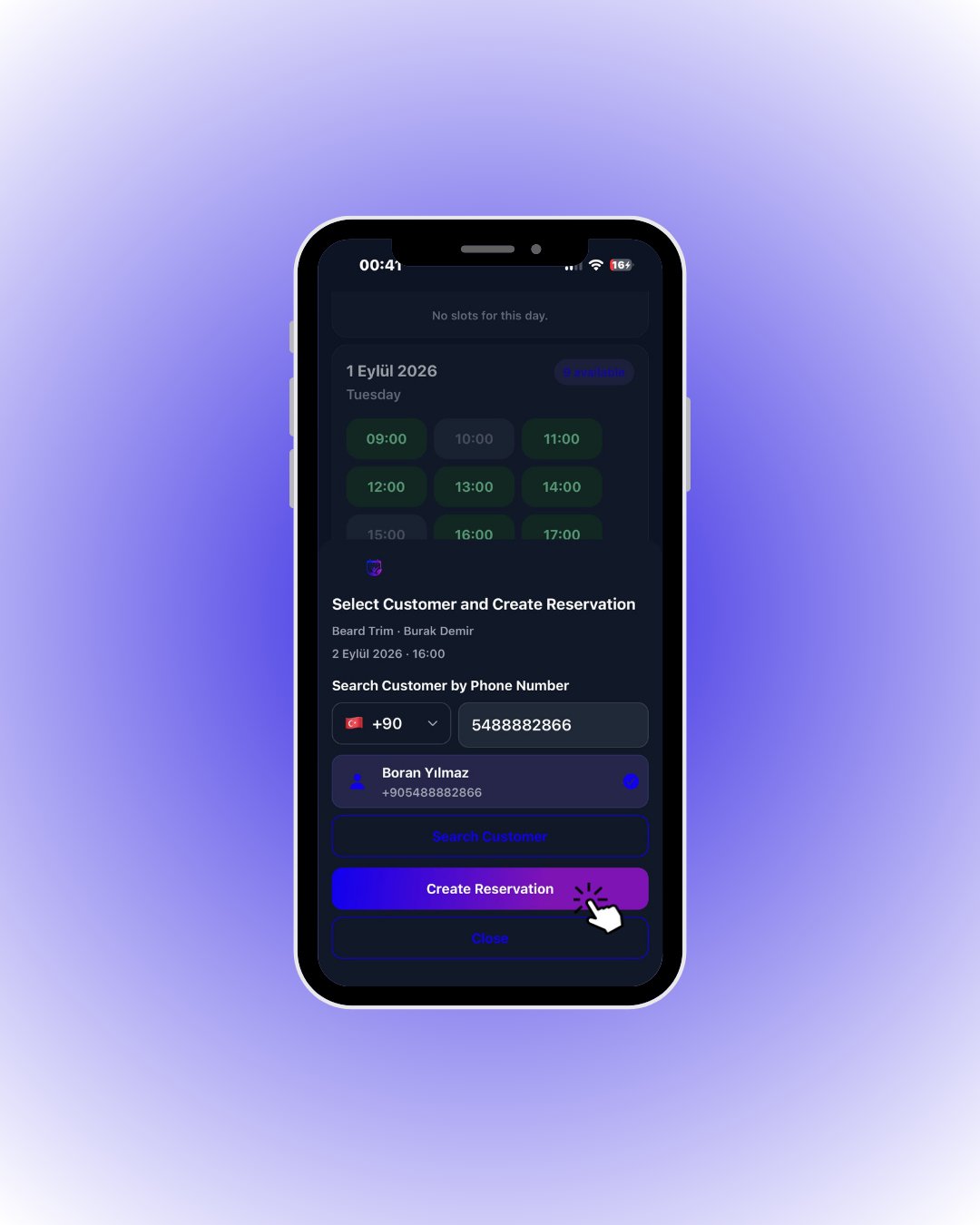
    Type the customer’s phone number and search. If registered, their card appears; tap it to select.

    <div className="s-action">Tap **Create Reservation** — the booking is created instantly.</div>
  </Step>

  <Step title="If the customer is new">
    <Frame>
      <img src="https://mintcdn.com/codevestllc-5d6f3ede/YKrZiftlDEtllZar/images/9.png?fit=max&auto=format&n=YKrZiftlDEtllZar&q=85&s=4d2bf9b9688d647a49f036b56cafd638" alt="Add new customer" width="1080" height="1350" data-path="images/9.png" />
    </Frame>

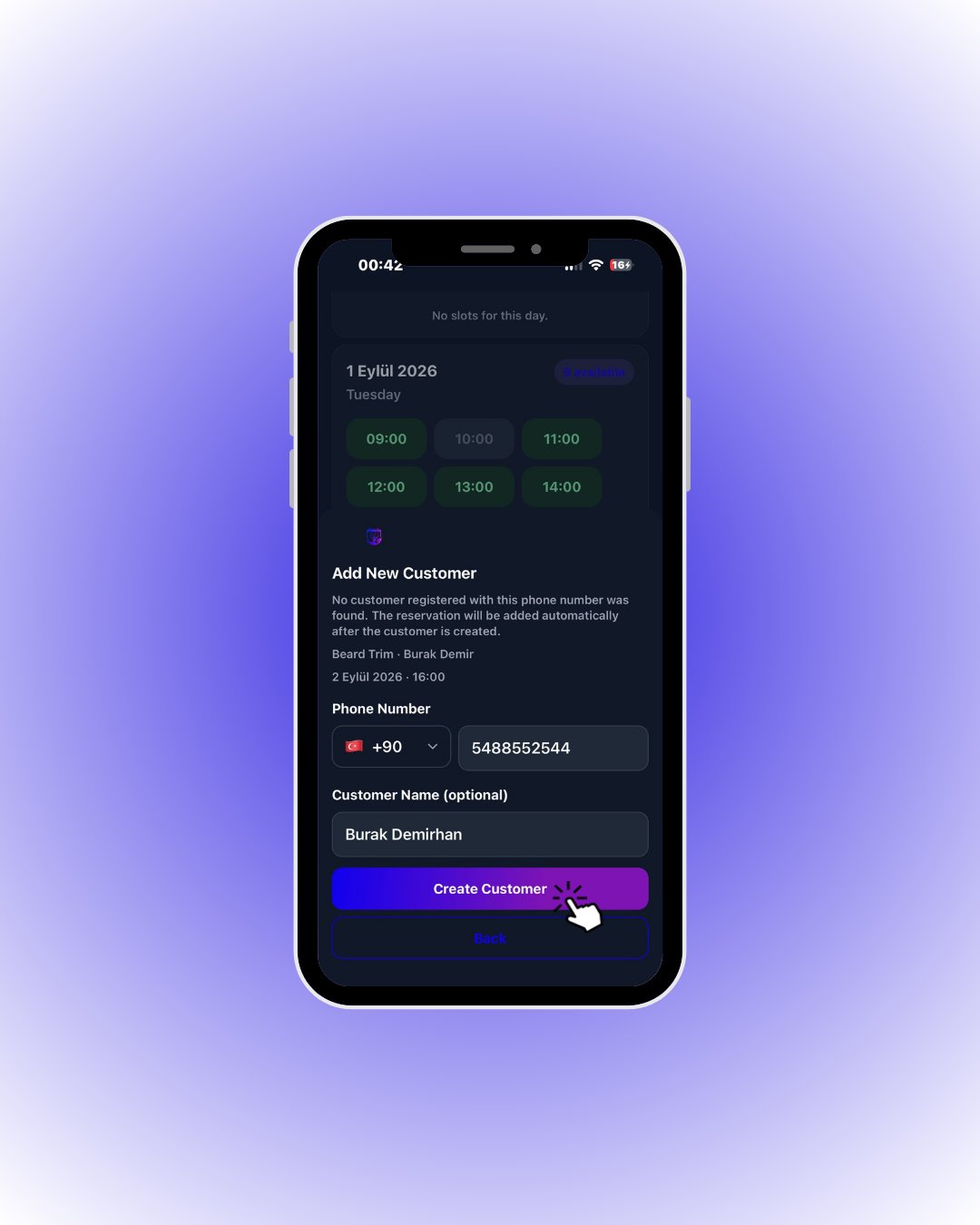
    If the number is not registered, Slotify takes you to the new-customer screen; the name field is optional.

    <div className="s-action">Tap **Create Customer** — the customer is created and the reservation is added **automatically**.</div>

    <Accordion title="🔎 Every element in this flow">
      | Field / Element                              | What it means                                                                                                                           |
      | -------------------------------------------- | --------------------------------------------------------------------------------------------------------------------------------------- |
      | **Experts row**                              | Your experts with photos; the booking is written to the selected expert.                                                                |
      | **Services list**                            | The expert’s services. Multiple **single-person** services can be combined; a **session** service is always selected alone.             |
      | **Total bar**                                | Total duration and price of the selection (e.g. *50 min · 1,200 ₺*).                                                                    |
      | **Green / dimmed slots**                     | Green: available. Dimmed: taken or outside the working window.                                                                          |
      | **“available” badge**                        | Number of free slots that day.                                                                                                          |
      | **Remaining capacity**                       | Shown under session slots; the slot closes when capacity is full.                                                                       |
      | **Search Customer by Phone Number**          | Looks the customer up by phone; if registered, a card with their name appears.                                                          |
      | **Customer card**                            | Tap to select; a check mark appears.                                                                                                    |
      | **Create Reservation**                       | Creates the booking for the selected customer + services + time.                                                                        |
      | **Add New Customer → Phone / Customer Name** | New-customer form for unregistered numbers; name optional. **Create Customer** creates the customer and adds the booking automatically. |
    </Accordion>
  </Step>
</Steps>