> ## Documentation Index
> Fetch the complete documentation index at: https://documentation.slotify.com.tr/llms.txt
> Use this file to discover all available pages before exploring further.

# Create Reservation (Web)

> Book on behalf of customers from the panel

# <span className="s-hero">Create Reservation</span>

Create a booking in seconds for the customer on the phone.

<Info>🌐 **URL:** [`https://admin.slotify.com.tr/reservations/new`](https://admin.slotify.com.tr/reservations/new) · 🧭 **Menu:** **Booking Management → Reservations**</Info>

<Steps>
  <Step title="Pick expert & services">
    <Frame>
      <img src="https://mintcdn.com/codevestllc-5d6f3ede/YKrZiftlDEtllZar/images/web/3.png?fit=max&auto=format&n=YKrZiftlDEtllZar&q=85&s=cacf9a6db0f086e2588e173a34c2e59d" alt="Expert and services" width="2778" height="1284" data-path="images/web/3.png" />
    </Frame>

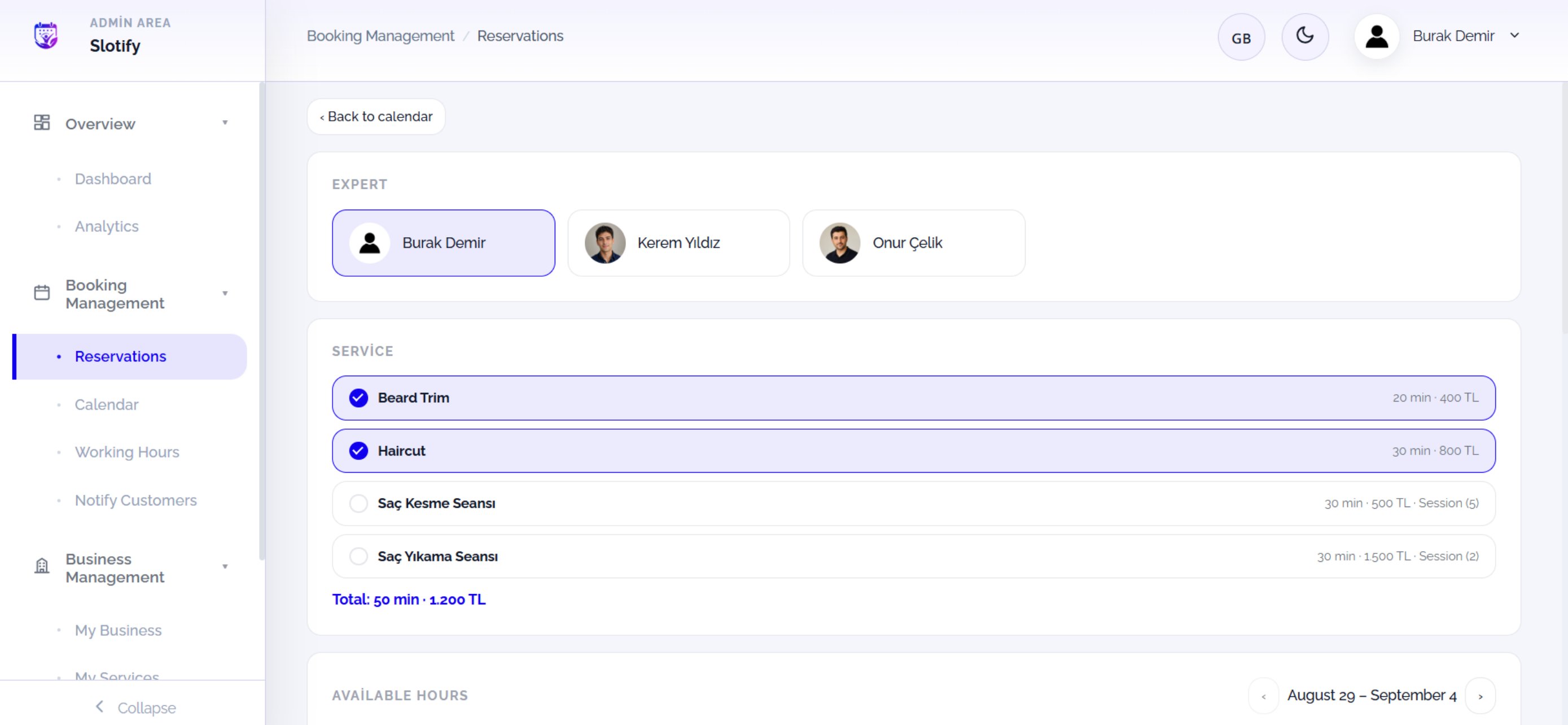
    Choose the **Expert**, then the **Service(s)**. Session services show their capacity inline (*Session (5)*) and are selected alone.
    <Accordion title="🔎 Elements here">
      | Field / Element           | What it means                                                                                     |
      | ------------------------- | ------------------------------------------------------------------------------------------------- |
      | **Expert cards**          | Photo cards; the selected one has a purple border.                                                |
      | **Service rows**          | Multi-select with ✓ (single-person services); duration · price · Session (capacity) on the right. |
      | **Total**                 | Combined duration and price (e.g. *50 min · 1,200 TL*).                                           |
      | **Available Hours + ‹ ›** | Week range header with prev/next arrows.                                                          |
    </Accordion>
  </Step>

  <Step title="Pick a time">
    <Frame>
      <img src="https://mintcdn.com/codevestllc-5d6f3ede/YKrZiftlDEtllZar/images/web/2.png?fit=max&auto=format&n=YKrZiftlDEtllZar&q=85&s=9f9516deed304f5617b501ea65b07135" alt="Available slots" width="2778" height="1284" data-path="images/web/2.png" />
    </Frame>

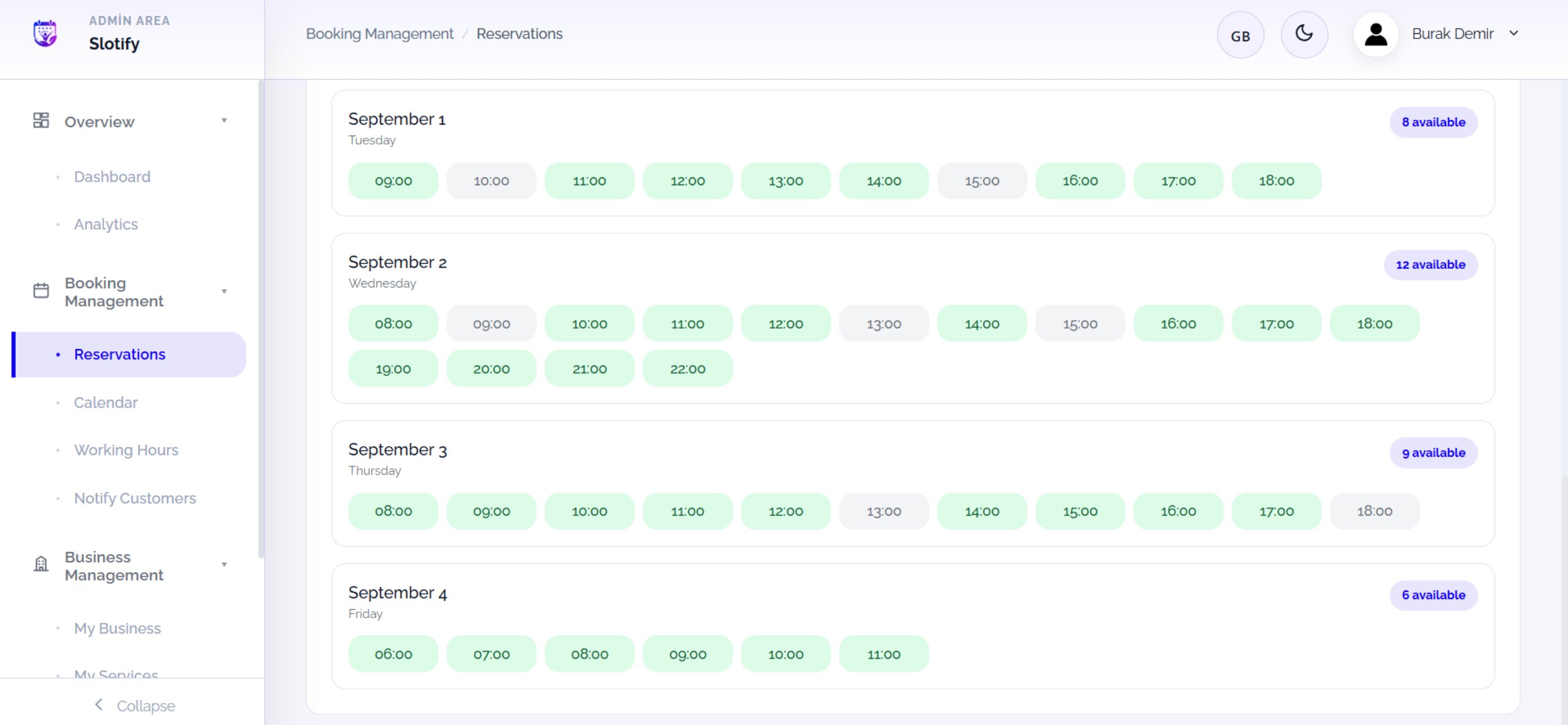
    Days are listed as cards; green chips are available, grey ones taken. The **N available** badge counts the day’s free slots.

    <div className="s-action">Click a green slot — the customer picker opens.</div>
  </Step>

  <Step title="Existing customer">
    <Frame>
      <img src="https://mintcdn.com/codevestllc-5d6f3ede/YKrZiftlDEtllZar/images/web/1.png?fit=max&auto=format&n=YKrZiftlDEtllZar&q=85&s=608375b349a81afaa9f985117a7c7c84" alt="Search customer" width="2778" height="1284" data-path="images/web/1.png" />
    </Frame>

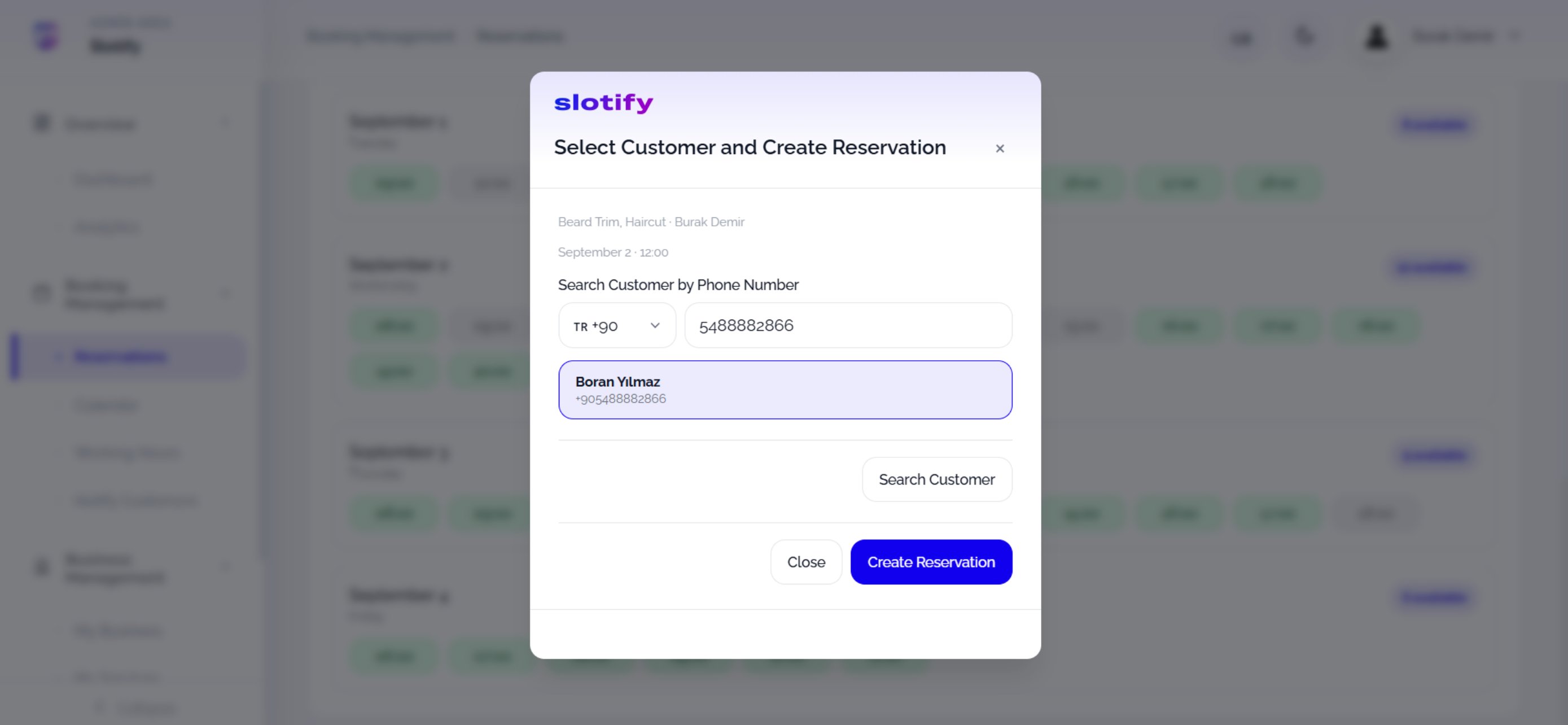
    Type the phone number and click **Search Customer**; if registered, the customer card appears selected.

    <div className="s-action">Click **Create Reservation** — the booking is created instantly.</div>
  </Step>

  <Step title="New customer">
    <Frame>
      <img src="https://mintcdn.com/codevestllc-5d6f3ede/YKrZiftlDEtllZar/images/web/11.png?fit=max&auto=format&n=YKrZiftlDEtllZar&q=85&s=e009cfa0c7f5ea4ba60b8b2791a3a9a7" alt="New customer" width="2778" height="1284" data-path="images/web/11.png" />
    </Frame>

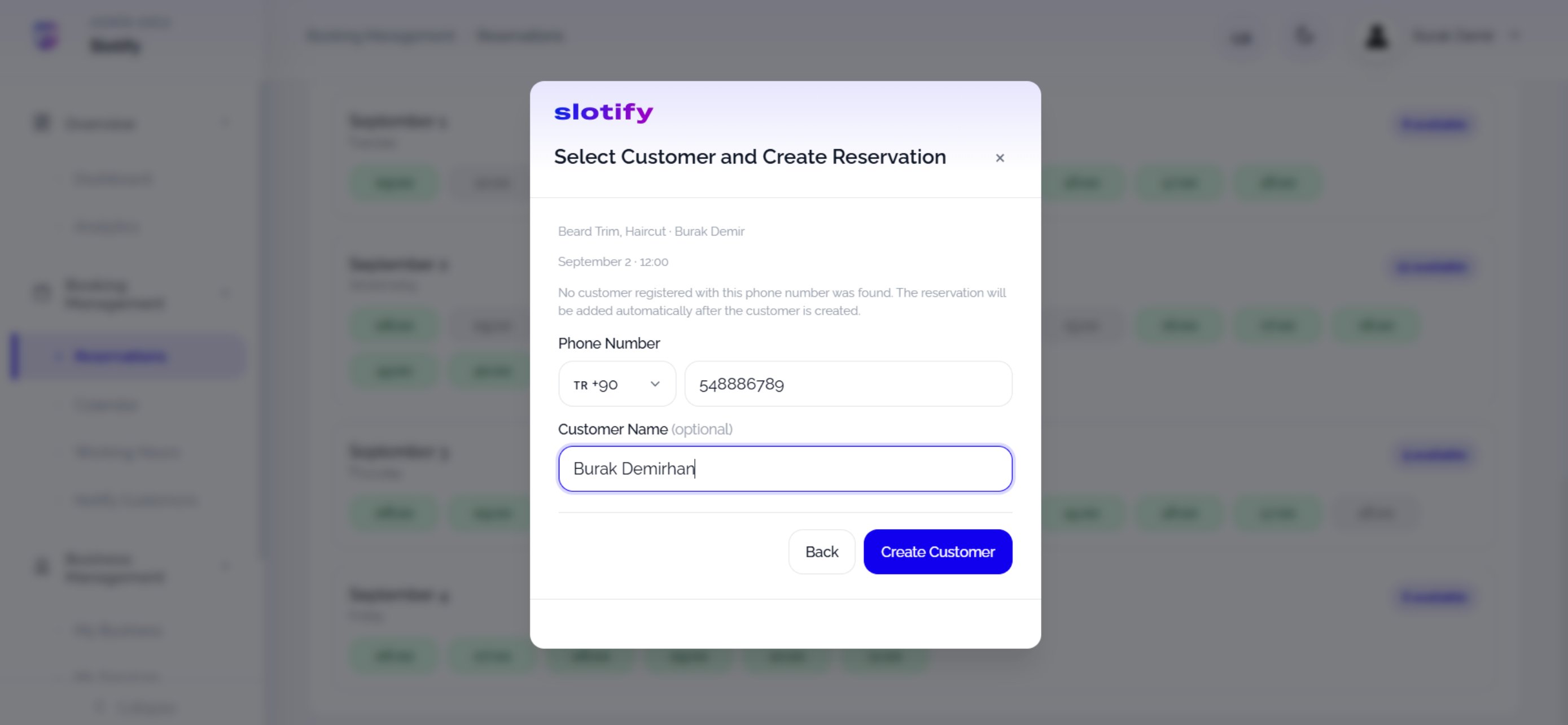
    If the number is unknown the dialog switches to the new-customer form; the name is optional.

    <div className="s-action">Click **Create Customer** — the customer is created and the booking added **automatically**.</div>
  </Step>
</Steps>