> ## Documentation Index
> Fetch the complete documentation index at: https://documentation.slotify.com.tr/llms.txt
> Use this file to discover all available pages before exploring further.

# Roles

> Role and permission management on the web

# <span className="s-hero">Roles</span>

Manage your team’s permissions from the web panel.

<Info>🌐 **URL:** [`https://admin.slotify.com.tr/roles`](https://admin.slotify.com.tr/roles) · 🧭 **Menu:** **Business Management → Roles**</Info>

<Steps>
  <Step title="The Roles page">
    <Frame>
      <img src="https://mintcdn.com/codevestllc-5d6f3ede/YKrZiftlDEtllZar/images/web/10.png?fit=max&auto=format&n=YKrZiftlDEtllZar&q=85&s=7aaf0d7737d664bb7ae9d9f4827f579b" alt="Roles page" width="2778" height="1284" data-path="images/web/10.png" />
    </Frame>

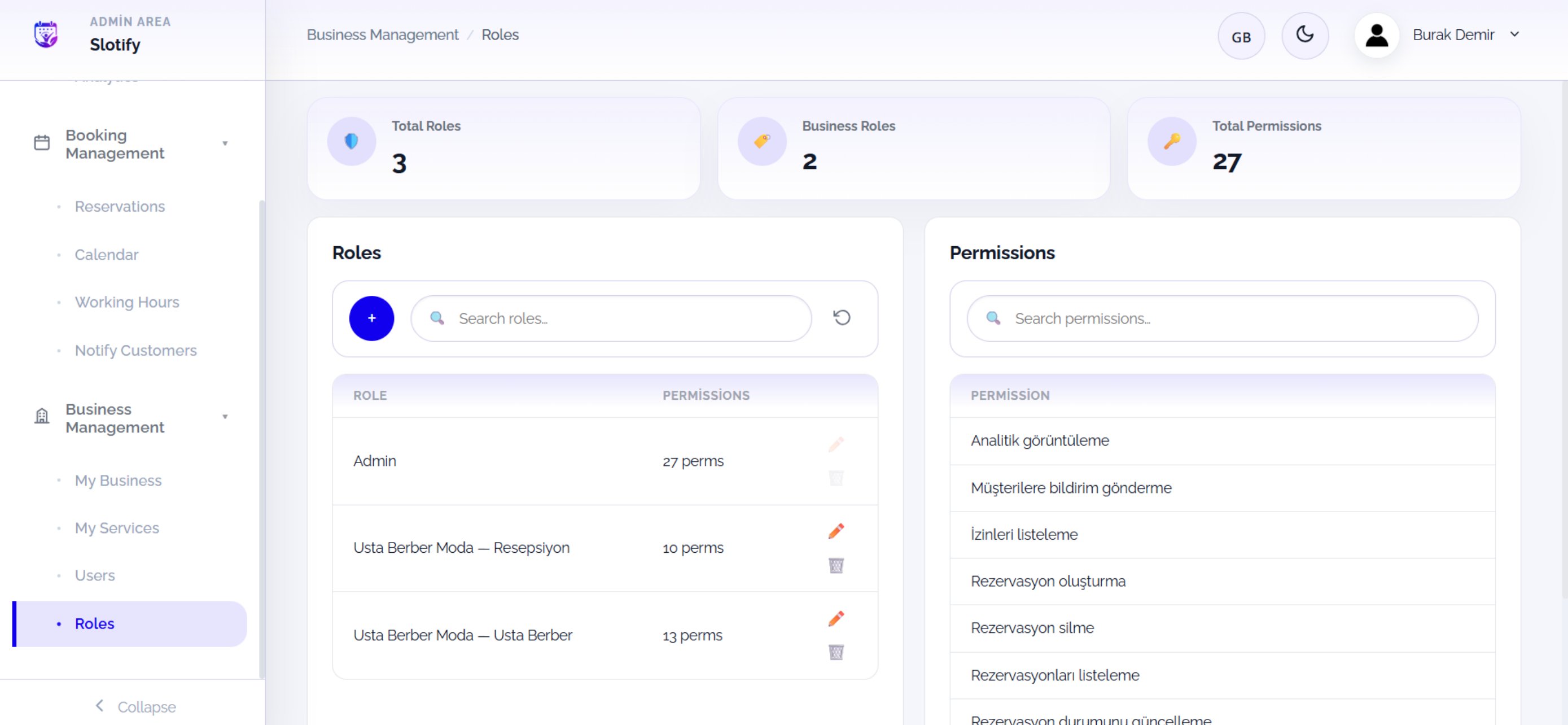
    Role list on the left, all system permissions on the right, summary cards on top.

    <div className="s-action">Click the **+** button at the head of the role list to create a role.</div>

    <Accordion title="🔎 Page elements">
      | Field / Element                                      | What it means                                                                                                          |
      | ---------------------------------------------------- | ---------------------------------------------------------------------------------------------------------------------- |
      | **Total Roles / Business Roles / Total Permissions** | All roles, the ones you created, and the number of permissions in the system.                                          |
      | **Roles table**                                      | Role name + permission count (e.g. *13 perms*); ✏️ edits, 🗑 deletes. **Admin** is a system role and cannot be edited. |
      | **Search boxes**                                     | Instant filtering on both panels.                                                                                      |
      | **Permissions panel**                                | Readable list of every permission.                                                                                     |
    </Accordion>
  </Step>

  <Step title="Create a role">
    <Frame>
      <img src="https://mintcdn.com/codevestllc-5d6f3ede/YKrZiftlDEtllZar/images/web/9.png?fit=max&auto=format&n=YKrZiftlDEtllZar&q=85&s=c95d58ea92e7cb76c80a47443429370c" alt="New role" width="2778" height="1284" data-path="images/web/9.png" />
    </Frame>

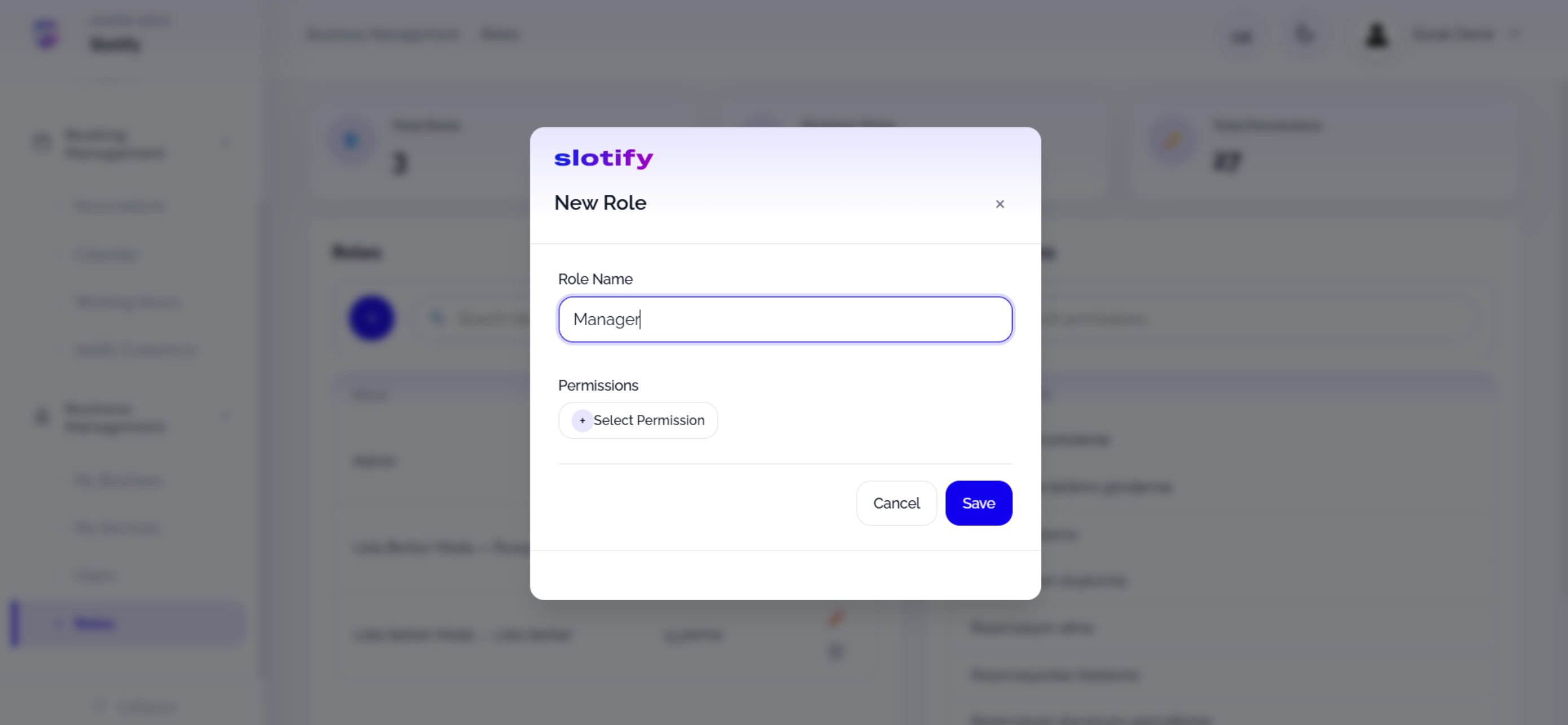
    Give the role a name (e.g. *Manager*) in the **New Role** dialog.

    <div className="s-action">Click **+ Select Permission** to open the permission picker.</div>
  </Step>

  <Step title="Pick permissions">
    <Frame>
      <img src="https://mintcdn.com/codevestllc-5d6f3ede/YKrZiftlDEtllZar/images/web/8.png?fit=max&auto=format&n=YKrZiftlDEtllZar&q=85&s=f429126ce990c197143a9170868ca38b" alt="Permission picker" width="2778" height="1284" data-path="images/web/8.png" />
    </Frame>

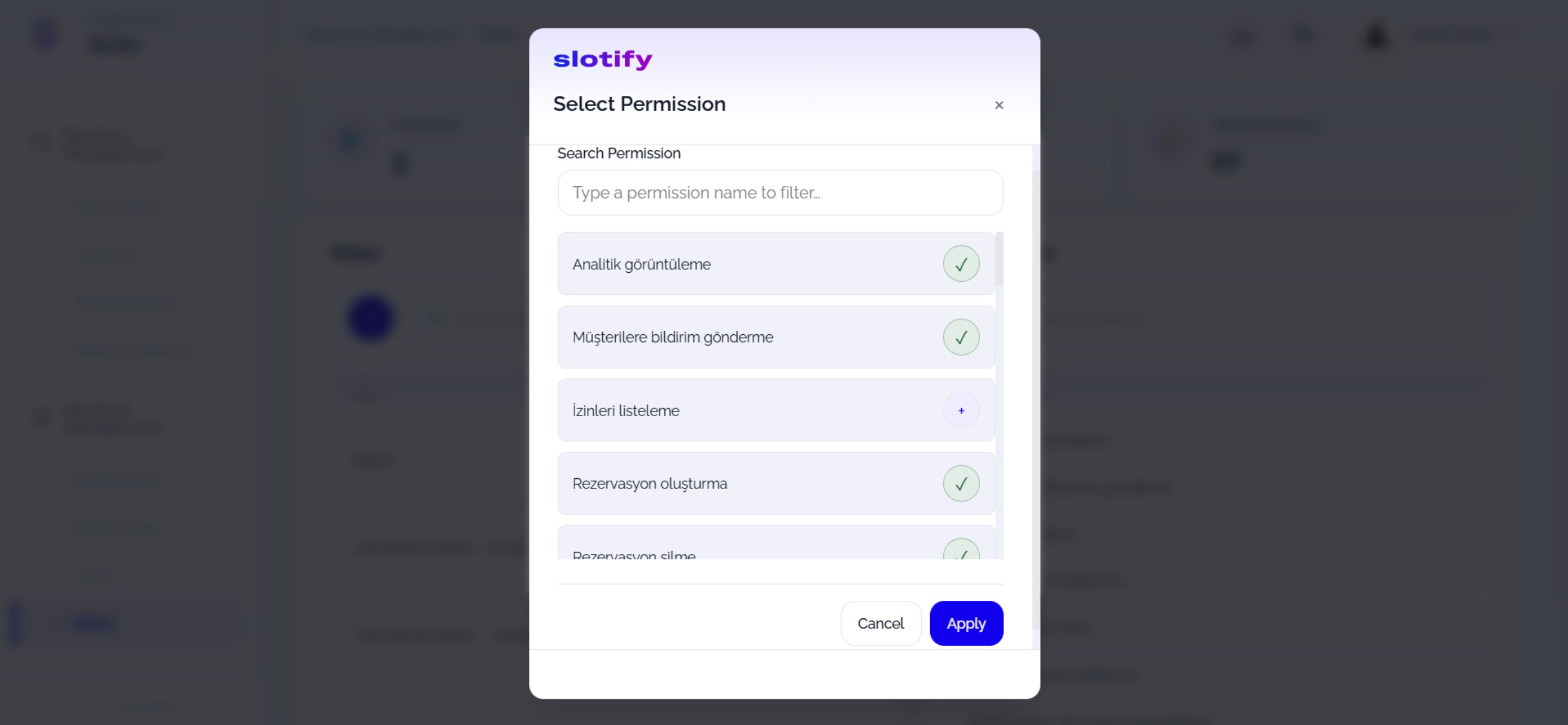
    Tick permissions; filter with the search box. ✓ selected, **+** selectable.

    <div className="s-action">Confirm with **Apply**.</div>
  </Step>

  <Step title="Save">
    <Frame>
      <img src="https://mintcdn.com/codevestllc-5d6f3ede/YKrZiftlDEtllZar/images/web/7.png?fit=max&auto=format&n=YKrZiftlDEtllZar&q=85&s=24d181572b6db766adf55bc300a58e88" alt="Save role" width="2778" height="1284" data-path="images/web/7.png" />
    </Frame>

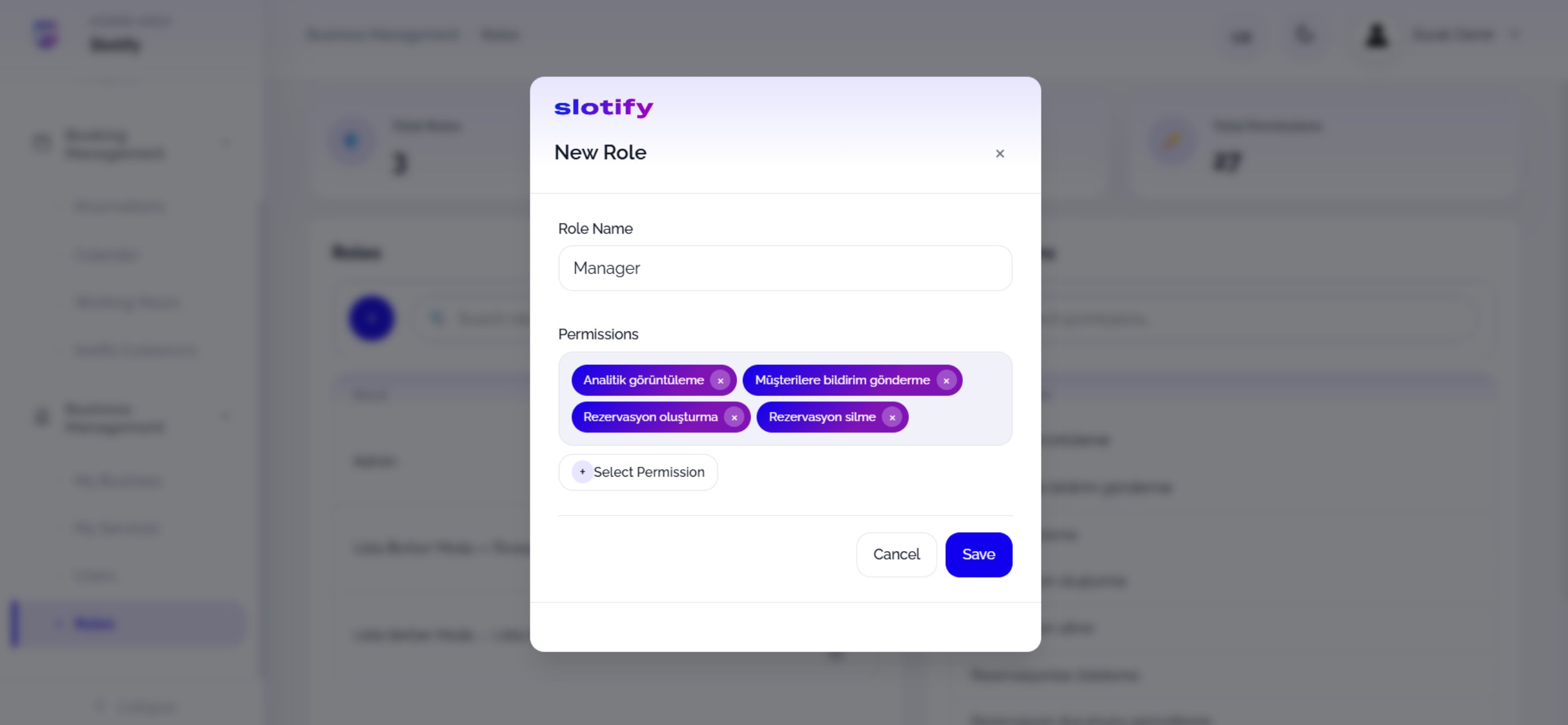
    Selected permissions appear as purple chips; remove any with ❌.

    <div className="s-action">Click **Save** — the role is ready to assign.</div>
  </Step>
</Steps>