> ## Documentation Index
> Fetch the complete documentation index at: https://documentation.slotify.com.tr/llms.txt
> Use this file to discover all available pages before exploring further.

# My Services

> Define services and special hours on the web

# <span className="s-hero">My Services</span>

Manage your services from the web panel, filtered per staff member.

<Info>🌐 **URL:** [`https://admin.slotify.com.tr/services`](https://admin.slotify.com.tr/services) · 🧭 **Menu:** **Business Management → My Services**</Info>

<Steps>
  <Step title="Service list">
    <Frame>
      <img src="https://mintcdn.com/codevestllc-5d6f3ede/YKrZiftlDEtllZar/images/web/17.png?fit=max&auto=format&n=YKrZiftlDEtllZar&q=85&s=fc797721fc82024c4dfc6b3b4fc4c714" alt="Service list" width="2778" height="1284" data-path="images/web/17.png" />
    </Frame>

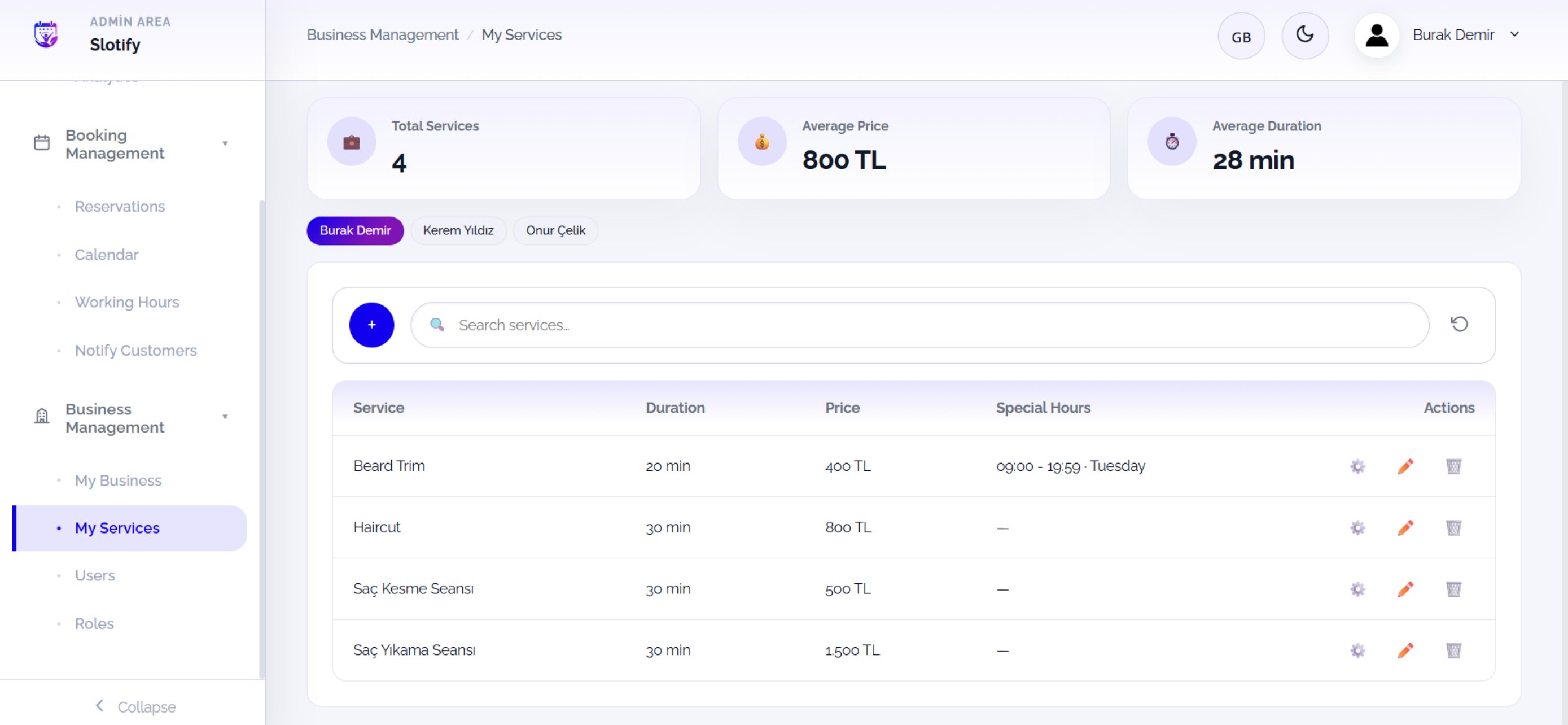
    Summary cards on top (**Total Services**, **Average Price**, **Average Duration**) and staff tabs; the table shows duration, price and special hours.

    <div className="s-action">Click **+** for a new service; click a staff chip to see that expert’s services.</div>

    <Accordion title="🔎 Table & actions">
      | Field / Element                | What it means                                                        |
      | ------------------------------ | -------------------------------------------------------------------- |
      | **Service / Duration / Price** | Name, length and fee.                                                |
      | **Special Hours**              | The window if defined (e.g. *09:00 – 19:59 · Tuesday*), otherwise —. |
      | **⚙️**                         | Opens the special-hours dialog.                                      |
      | **✏️ / 🗑**                    | Edit / delete the service.                                           |
    </Accordion>
  </Step>

  <Step title="New service">
    <Frame>
      <img src="https://mintcdn.com/codevestllc-5d6f3ede/YKrZiftlDEtllZar/images/web/15.png?fit=max&auto=format&n=YKrZiftlDEtllZar&q=85&s=61e4de027c613f4d85a93bc9e02659bc" alt="New service" width="2778" height="1284" data-path="images/web/15.png" />
    </Frame>

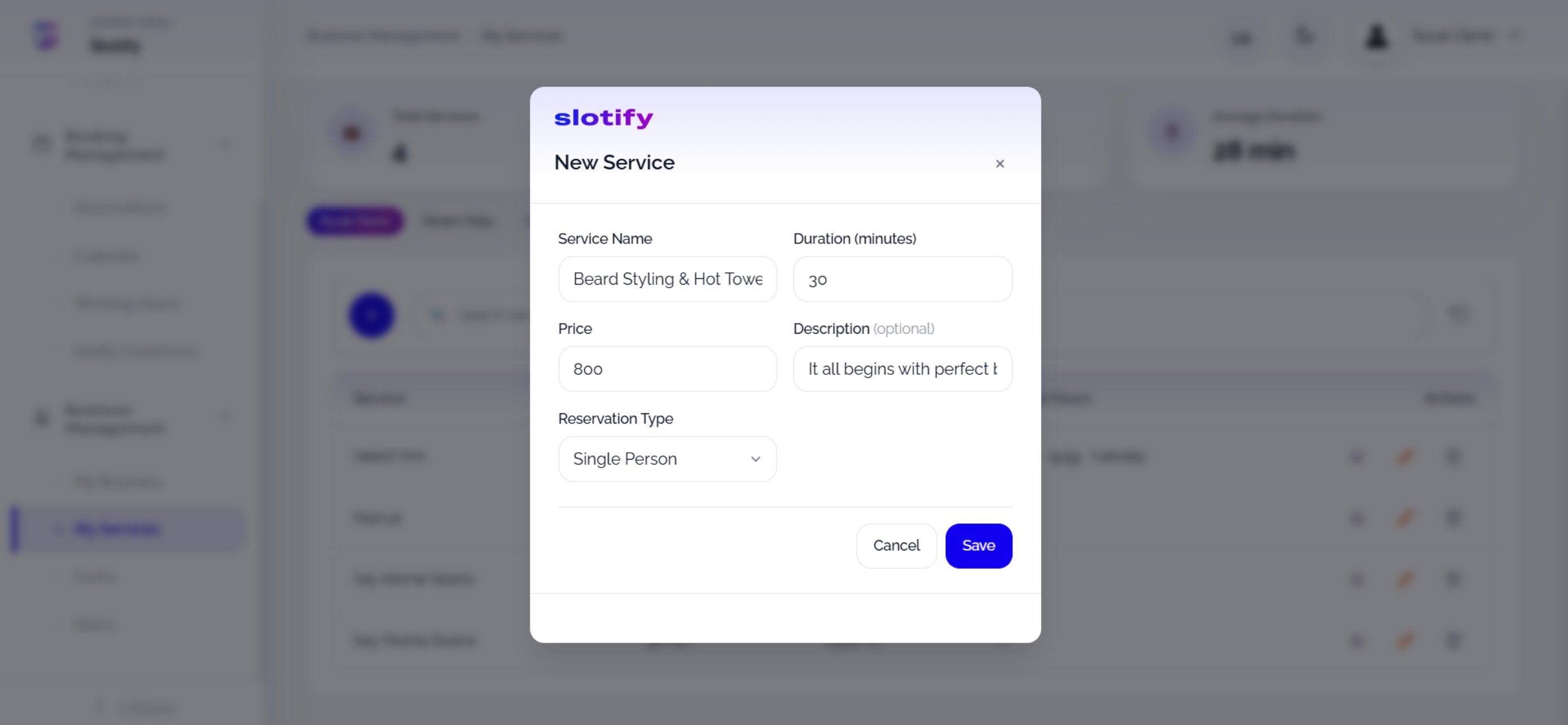
    Fill in the **New Service** dialog.

    <div className="s-action">Complete the fields and click **Save**.</div>

    <Accordion title="🔎 Every form field">
      | Field / Element            | What it means                                                                                                                                                                                                  |
      | -------------------------- | -------------------------------------------------------------------------------------------------------------------------------------------------------------------------------------------------------------- |
      | **Service Name**           | e.g. *Beard Styling & Hot Towel*.                                                                                                                                                                              |
      | **Duration (minutes)**     | Length — slot occupancy is computed from it.                                                                                                                                                                   |
      | **Price**                  | The fee.                                                                                                                                                                                                       |
      | **Description (optional)** | Short text customers see.                                                                                                                                                                                      |
      | **Reservation Type**       | **Single Person**: one customer per slot. **Session (Group)**: multiple customers share the slot up to a capacity (pilates-style); selecting it reveals the capacity field and the slot closes only when full. |
    </Accordion>
  </Step>

  <Step title="Special working hours">
    <Frame>
      <img src="https://mintcdn.com/codevestllc-5d6f3ede/YKrZiftlDEtllZar/images/web/16.png?fit=max&auto=format&n=YKrZiftlDEtllZar&q=85&s=bb8062bd332879310c088e82de5ce5ed" alt="Special working hours" width="2778" height="1284" data-path="images/web/16.png" />
    </Frame>

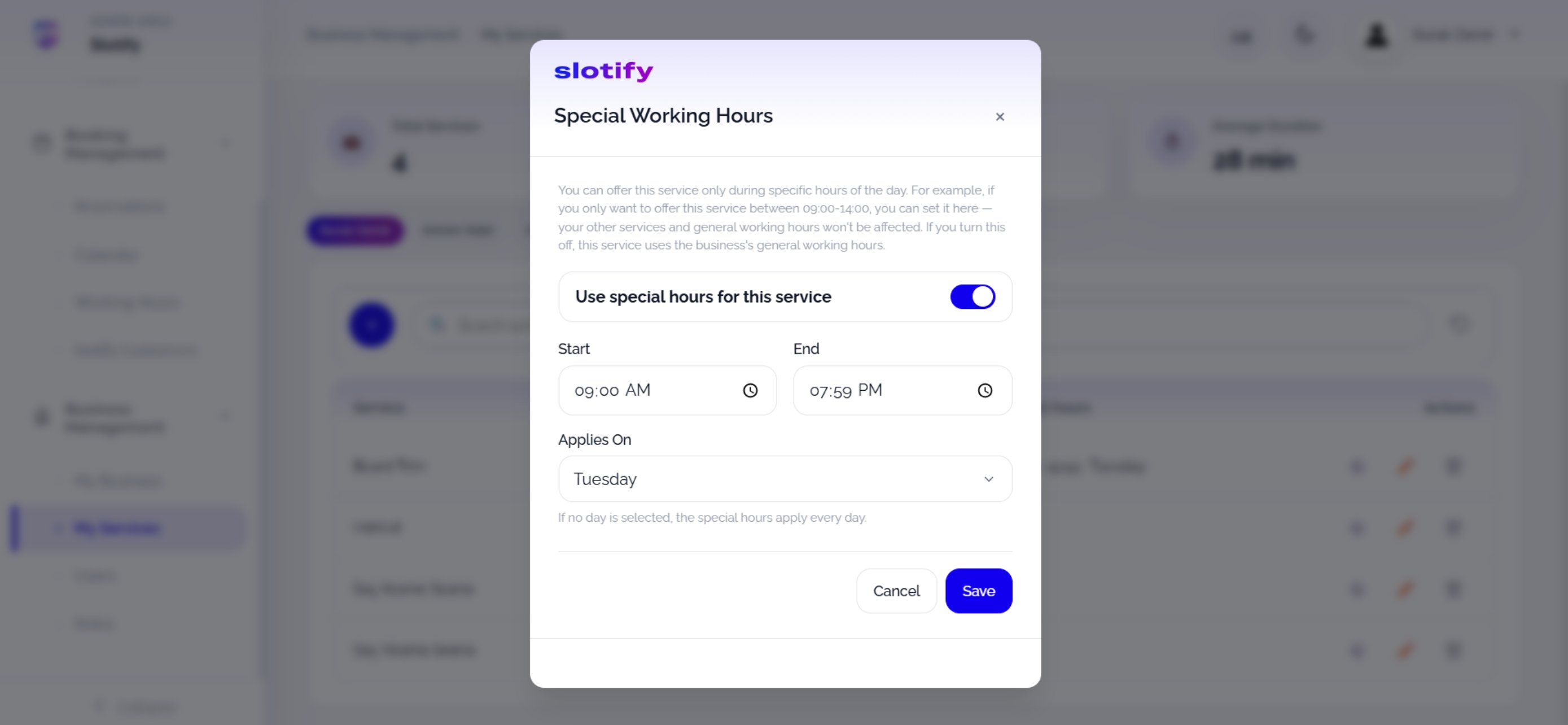
    The ⚙️ icon on a service row opens this dialog.

    <div className="s-action">Turn on **Use special hours for this service**, pick the window and day, then click **Save**.</div>

    <Accordion title="🔎 Special-hours rules">
      | Field / Element                        | What it means                                                                        |
      | -------------------------------------- | ------------------------------------------------------------------------------------ |
      | **Use special hours for this service** | While on, the service is bookable only inside the window; off = general hours apply. |
      | **Start / End**                        | The service-specific window — other services and general hours are unaffected.       |
      | **Applies On**                         | The day it applies to; **no day selected = every day**.                              |
    </Accordion>
  </Step>
</Steps>
